
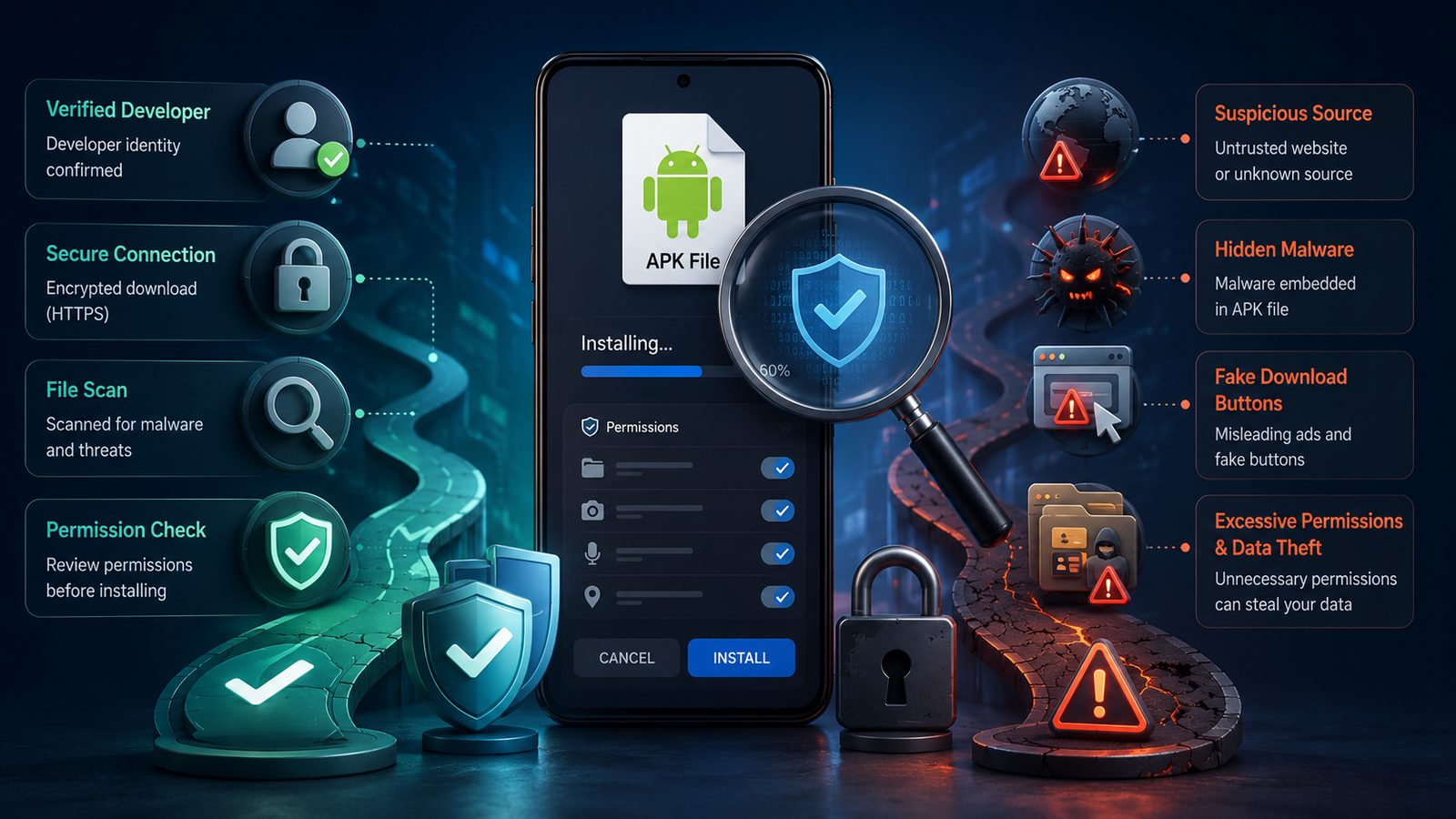
Google Play is not the only way to install an Android app. A developer may offer an app through its own website or another app store. In such cases, users download an APK file and install it by hand.
This process gives users more choice. It also removes some of the checks that Google Play applies before an app reaches a phone.
An APK from outside Google Play is not unsafe by default. The risk depends on its source, code, and permissions. A fake file can copy a trusted app’s name, logo, and login screen. It may then steal passwords, read private data, or install hidden software.
Treat an APK like a sealed package from an unknown sender. Check the address, label, seal, and contents before you open it.
What An APK File Is
An APK, or Android Package Kit, is the file Android uses to install an app. It works much like an .exe file on Windows. The package holds the app’s code, images, settings, and security data.
Google Play installs APKs in the background. Users rarely see the files. Direct download pages provide the package itself. For example, a page offering a bc game apk asks the user to download and install the file outside Google Play.
This process is called sideloading. Android blocks it by default for most sources. The user must allow a browser or file manager to install unknown apps.
The file format is not the main risk. The source is. A clean APK from a real developer may be safe. A copied or altered file may hide harmful code behind a familiar icon.
Why APK Downloads Need Extra Care
Google Play adds checks between the developer and your phone. A direct APK removes part of that barrier. You must inspect the file and its source yourself.
A harmful APK may:
- Steal login details through a false sign-in screen.
- Read private data, such as contacts, photos, or messages.
- Request broad access that the app does not need.
- Show hidden ads or install other software.
- Replace a real app with a modified copy.
- Miss key updates, leaving known flaws unfixed.
- Run in the background and drain the battery.
- Send data without clear notice.
The danger often hides behind a normal icon and a familiar name. A clean design does not prove that the code is safe.
Check The Download Source First
The download page tells you much about the file. A safe source should make the developer, app version, update date, and support details easy to find. A weak source hides these facts or pushes you to act fast.
Use this table before you download:
| Check | Safer Sign | Warning Sign |
| Website Address | The domain matches the official brand | The address uses odd spelling, extra words, or random numbers |
| HTTPS | The browser shows a secure connection | The browser displays a security warning |
| Developer Name | The developer is named and can be checked | No clear company or developer details appear |
| Version Details | The page lists the version and update date | The file has no version history |
| Contact Information | The site provides real support channels | The page offers no clear contact method |
| Download Flow | One clear button starts the download | Pop-ups and false buttons lead to other files |
| Claims | The page explains features in plain terms | It promises perfect safety or guaranteed results |
Do not trust a page because it looks polished. A fake shop may have bright signs and clean shelves. The address and owner matter more than the paint.
Confirm The App And Developer
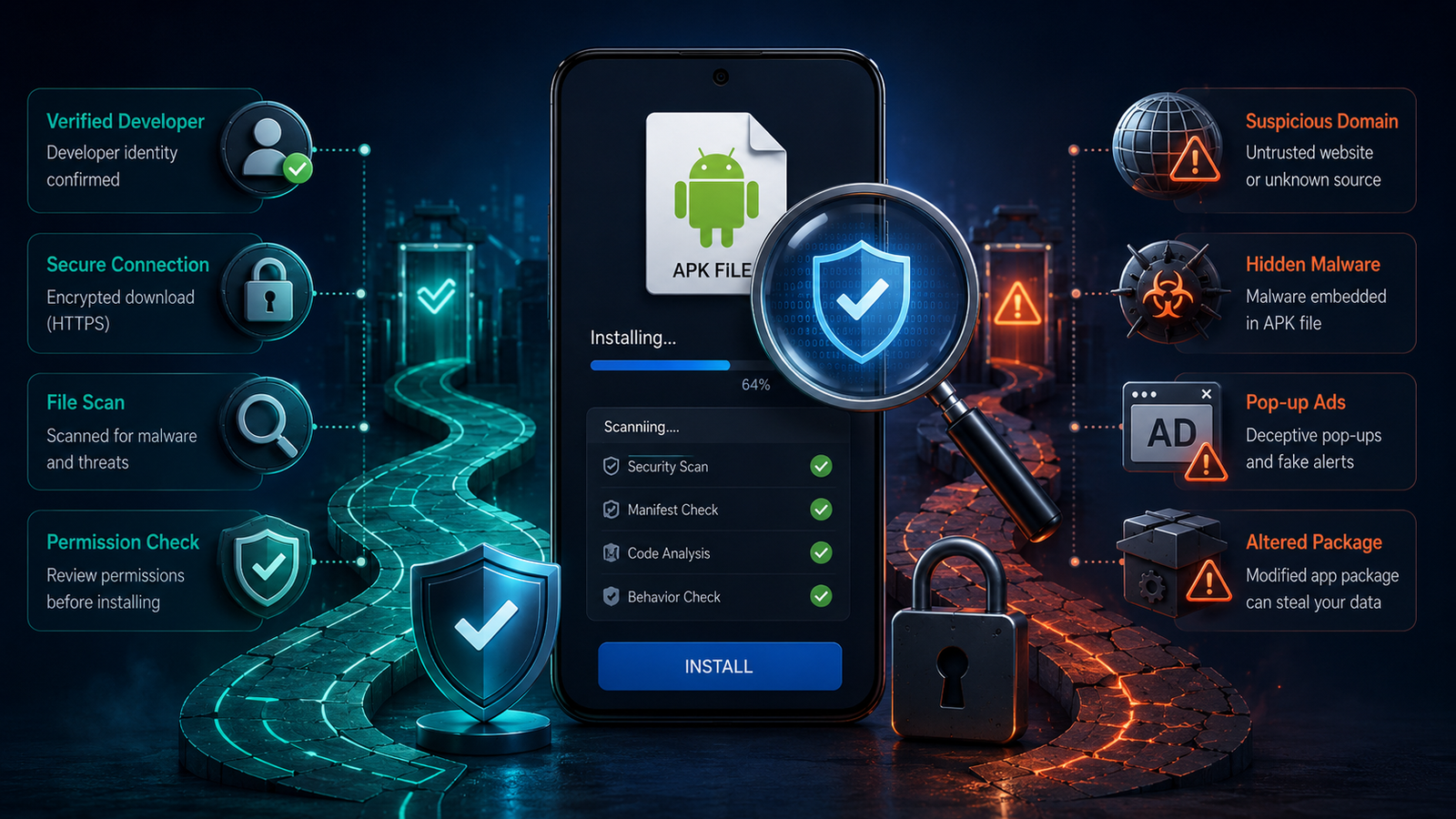
A trusted app should have a clear owner. Check the developer’s name, company details, support page, and privacy policy. These details should match across the website and the app.
Start from the main website, not from a random download link. For example, users who find a related app page can first visit the official bc game website. They can then compare the brand name, domain, logo, support details, and download path.
Watch for small changes. A fake page may replace one letter, add a dash, or use a strange domain ending. The page may look exact, but the web address can expose the copy.
Also check the app’s package name. This name acts like a vehicle plate. Two apps may share the same icon, but their package identities should not conflict. Stop the install if the developer name or package name does not match.
Scan The APK Before Installation
Do not open the file as soon as it reaches your phone. Scan it first.
Keep Google Play Protect active. It can inspect apps from outside Google Play and warn you about known threats. You can also check the file with a trusted security service.
A scan cannot prove that an APK is safe. New malware may escape detection. Still, a warning gives you a clear reason to stop.
Check the file size as well. A large change from the size shown on the official page may point to a damaged or altered package.
Advanced users can compare the file’s cryptographic hash with a value published by the developer. A hash works like a digital fingerprint. Even a small change in the file creates a different result.
Review Every Permission
Android shows the access an app requests. Read each request before you approve it.
The permission should match the app’s task. A camera app may need camera access. A map app may need location access. A simple calculator should not need your contacts, microphone, or text messages.
Pay close attention to requests for:
- Accessibility services
- Device administrator rights
- SMS access
- Contact access
- Microphone or camera access
- Location data
- Permission to install other apps
These permissions can give an app deep control over the phone. Deny any request that lacks a clear reason.
Watch The App After Installation
Risk checks should not end when the app opens. Watch how the phone behaves after installation.
Look for sudden battery drain, heat, high mobile data use, strange pop-ups, or unknown apps. Also check whether the app runs when you are not using it.
Remove the app if its behaviour changes without cause. Then scan the phone and change any password entered through the app.
Updates matter too. An app installed from a website may not update through Google Play. Return only to the same verified source for new versions. Do not install an update from a message, pop-up, or unknown link.
Final Safety Checklist
Installing an APK can be safe when you control each step. Start with the official website. Confirm the developer, domain, version, package name, and support details. Scan the file before you open it. Review each permission during setup.
Stop when something feels wrong. A broken link, false button, odd domain, or broad permission can signal risk. Do not rush because a page offers a reward or warns that time is short.
Keep Google Play Protect active. Update the app from the same trusted source. Remove it if your phone starts to heat up, drain power, show strange ads, or use more data than usual.
An APK is only a package. Its safety depends on who built it, where you found it, and what access you grant. Check those three points before the app reaches your phone.