
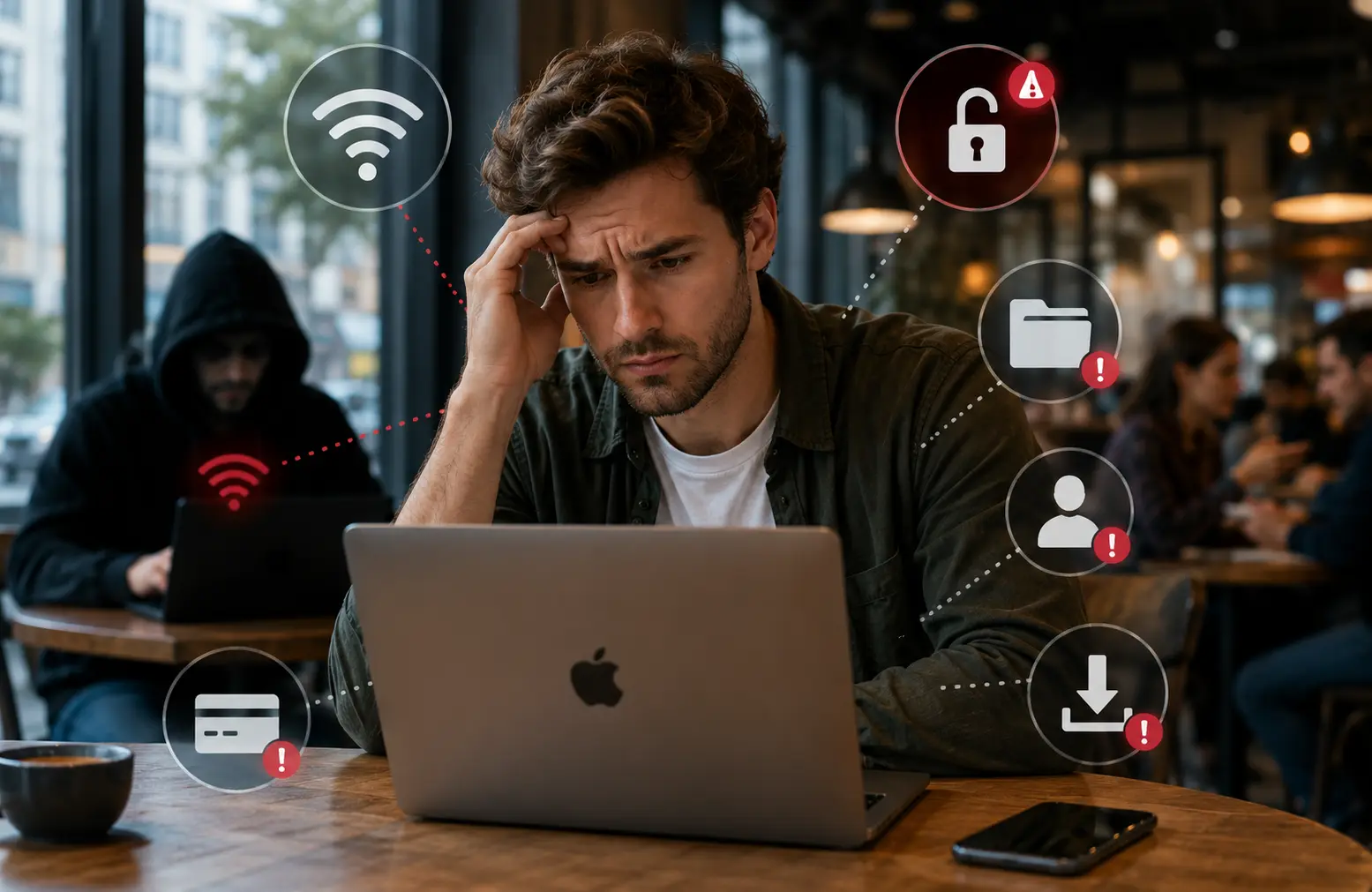
Public Wi-Fi is available in many places for our convenience, such as coffee shops, airports, hotels, libraries, and coworking spaces. But it poses serious security risks. Mac users, buoyed by macOS’s strong security framework, often become complacent and overlook the platform-specific vulnerabilities. This approach exposes them to issues such as man-in-the-middle (MITM) attacks, rogue hotspots, data interception, malware injection, and session hijacking.
Here are five common mistakes Mac users make while using public WiFi, along with the practical ways to avoid them.
Connecting to Rogue or Fake WiFi Networks Without Verification
One of the easiest ways attackers target users is by creating an “Evil Twin” hotspot that mimics legitimate networks. Mac users frequently connect automatically or choose the strongest signal without confirming the exact name with the staff.
How to Avoid It
- Always ask for the exact network name and confirm spelling.
- In System Settings > Network > Wi-Fi > Details, review known networks and use “Forget This Network” for public ones after use.
- Disable auto-join for open networks.
- If a connection issue arises, you can “Turn Off” the private Wi-Fi Address. However, re-enable it for privacy.
Not Using a VPN or Relying Solely on macOS Encryption
There is a common perception that HTTPS everywhere and macOS security features make public Wi Fi safe for Mac users. Even though modern websites encrypt data, DNS queries, and connection metadata, some traffic still leaks. The possibility that attackers on the same network can perform MITM attacks and use tools to sniff encrypted portions.
How to Avoid It
- Use a reliable VPN service. It will automatically activate on trusted networks. Many VPN apps for Mac integrate well with macOS and offer kill switches. A good VPN encrypts all traffic, making it much harder for local attackers to intercept data.
- Enable macOS’s built-in firewall. Open “System Settings,” tap “Network”, and click “Firewall” to enable.
- In order to avoid rogue DNS servers, you can opt for advanced options like custom DNS.
Leaving File Sharing, AirDrop, and Other Discovery Features Enabled
macOS makes collaboration easy with AirDrop, file sharing, printer sharing, and Bonjour services. Many users leave these active, turning their Mac into a visible target on a public network, where anyone on the same segment can access it, and potentially probe for open shares.
Attackers can attempt to access shared folders, inject files, or exploit weak permissions. Even without direct access, these services broadcast your device’s presence. Cybersecurity in the digital age has become a matter of concern for one and all. You must know how to protect your data.
How to Avoid It
- Go to “System Settings”, tap “General,” and click “Sharing” and disable all sharing options. It will disable File Sharing, Printer Sharing, Remote Management, etc.
- In “Control Centre” at the top-right menu bar, set AirDrop to “No One” or turn it off completely.
- For quick toggling, create a shortcut or use a menu-bar utility to switch profiles when travelling.
Note: Re-enable these features only when back on a trusted network.
Accessing Sensitive Accounts or Entering Personal Data
Checking email, banking apps, or company portals on public Wi-Fi is common. Even with HTTPS, risks remain from session hijacking, fake portals, or malware that could capture keystrokes on the clipboard data.
Users often rely on saving passwords in Safari or iCloud Keychain, which can be tempting targets if a device is compromised via the network.
How to Avoid It
- Avoid logging into financial, work, or health accounts on public Wi-Fi. Use your phone’s cellular hotspot instead.
- Enable two-factor authentication everywhere and prefer app-based authentication over SMS. This will add an extra layer of protection and make it difficult for hackers to hack.
- Use Safari’s private browsing or a dedicated browser profile for public sessions.
- Keep macOS and all apps updated for the latest security patches. It will automatically do away with the bugs and minor issues.
Ignoring Network Location Settings and Forgetting to “Forget” the Network
macOS allows setting different firewall and security profiles for “Public,” “Work,” and “Home” networks. However, many users never customise this setting. They also remember dozens of public networks, thereby increasing future exposure to rogue versions. This makes the device susceptible to hacking.
The default “Public” location is more restrictive, but users often switch to less secure profiles or leave auto-connect enabled.
How to Avoid It
- When connected to public WiFi, ensure the location is set to “Public.”
- Regularly review and forget old networks in WiFi Settings.
- Keep “Ask to Join Networks” enabled and avoid automatic connections.
- Use lock screen settings aggressively and enable “Find My” for remote wipe capabilities if the device is lost or stolen.
Conclusion
Public WiFi will never be perfectly safe, but by avoiding these five mistakes, Mac users can significantly reduce their risks. The combination of macOS’s native tools and a reliable VPN provides robust protection for most scenarios. Treat every public network as potentially hostile and prioritize cellular data or trusted connections for anything important. Staying safe online is ultimately about habit. You have to develop them now so that you can protect your data for years to come.